Get in touch if you have any further questions regarding the School of Architecture and Built Environment.
+61 3 5227 8300

Transforming the built environment with purpose and innovation
Redefine how we design, construct and shape the built environment in response to the challenges of a rapidly evolving world. At Deakin, our approach is not just about building structures – it’s about creating places that are resilient, regenerative, and deeply connected to the communities we serve.
We stand for innovation, sustainability, and ethical responsibility, drawing from transdisciplinary knowledge to tackle the pressing environmental and societal challenges of our time.
Through our programs, research, and industry partnerships, we aim to empower students and professionals with the skills and vision needed to drive transformative change. Our graduates become the thought leaders and change makers who redefine the spaces in which we work, live and connect.
Our commitment is embedded in three guiding principles, shaping how we teach, research, innovate, and engage with industry and community:

Beyond design
Shaping resilient and dynamic environments
The built environment is a complex system shaped by spatial, ecological, social, economic, and cultural forces. We embrace transdisciplinary thinking, equipping professionals to navigate complexity and drive meaningful change in cities, landscapes, and communities.

Regenerative futures
Circular design and ethical responsibility
We champion circular design, ecological responsibility, and cultural sensitivity, ensuring that architecture and construction honour both the planet and the diverse communities that inhabit it. We embed the wisdom of Australia’s First Peoples in our approach, recognising the power of deep stewardship and regenerative design.

Future makers
Educating the next generation of leaders
Our greatest impact is through you – the built environment professionals of tomorrow. Through cutting-edge education, pioneering research, and meaningful industry partnerships, we cultivate visionary and ethical leaders who will redefine the future of our built environment.

Housed in an award-winning and architecturally significant former Woolstores building overlooking Corio Bay, staff and students alike get to experience our modern, well-equipped workshop, a studio space with 24-hour access and the A+B Gallery.
Our staff are active researchers and consultants who work with professionals in the public and private sectors. Led by Professor Sarah McGann, you’ll learn from the best. Feel empowered to turn your big ideas into the homes, buildings and cities of the future, and gain real-world experience through practical learning and industry-based opportunities.
Be inspired while studying in a city renowned for its commitment to creativity and innovation. With a vibrant arts scene, innovative industries, and a rich cultural heritage, Geelong is the ideal location to study architecture, design and construction.
Our school actively engages with the Geelong community through design projects, public events and collaborative initiatives. You'll have opportunities to contribute to the city's design landscape and make a positive impact on local communities.
As part of the UNESCO Creative Cities Network, Geelong and Deakin's School of Architecture and Built Environment is connected to a global community of design cities. Through this network, you'll be provided with opportunities for collaboration, knowledge sharing and international exchange.


Studying my undergraduate double degree and now pursuing my master’s in architecture at Deakin has been an incredibly fulfilling journey, both academically and personally. The blend of hands-on learning and theoretical knowledge has significantly developed my skills.
Master of Architecture
Take advantage of research opportunities spanning sustainable and circular futures, health and well-being, resilient communities, and smart technologies. Explore the factors that shape the built environment and collaborate with leading industry experts and community stakeholders to make a real difference – supported by our state-of-the-art facilities and interdisciplinary mentors.
Our faculty and students are engaged in cutting-edge research projects that address critical issues facing the built environment. From sustainable design to urban planning, our research aims to create positive change.
We foster collaboration between researchers, industry partners, and community stakeholders. Our collaborative projects bring together diverse perspectives to develop innovative solutions that benefit society.
Our research has a tangible impact on the built environment. We work closely with practitioners and policymakers to translate research findings into practical applications that improve the quality of life for communities around the world.

The uni education combined with learning via real-life projects complemented each other and advanced me beyond those who had not gained real work experience. The industry experience also helped me stand out from the rest when applying for graduate positions.
Bachelor of Construction Management (Honours)
We have strong industry links, which can lead to field trips, site visits and guest lectures from built environment professionals. Gain real-world experience during your studies and form invaluable professional networks that will ensure you graduate confident and work-ready.
Read on for more exciting study stories and career tips, featuring our current students, staff and alumni.
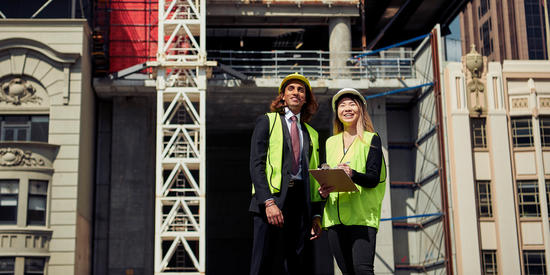
Discover what it takes to become a negotiator for building development projects involving councils, investors and contractors.

This article explores how Deakin property and real estate students are immersing themselves in sustainable construction when they analyse the Bimbimbie Project Cape Paterson.
Deakin references data from a range of government, higher education and reputable media sources. For more information, visit our University rankings page.


