Your trimester 1 exam timetable is available through StudentConnect now

Navigating CloudDeakin

Transcript for Navigating CloudDeakin

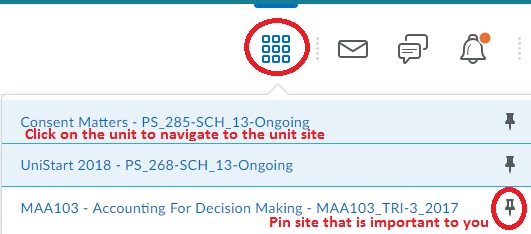
My Home At the top of the page you will see the minibar which is always visible wherever you are in the CloudDeakin environment. From the minibar you are able to switch between units; navigate to My Home page; receive notifications; and update your profile and preferences.

The My Home link will take you back to the main home page of CloudDeakin. My Home is your starting point inside the online learning environment.

From My Tools, you have access to:

  • Calendar, which allows you to view important University dates and due dates for assessments in each of your units.
  • ePortfolio, which is a personal portfolio tool for storing, organising, reflecting on and sharing items that represent your learning.
  • The Locker, which is your personal file storage area with a capacity of 25MB.
  • The Library link will take you to the Library home page.
  • Student Help takes you to help guides that have been tailored to suit the students' needs.
  • User Progress provides information regarding your learning progression in each unit that you are studying.

You can provide Feedback on the system from here.

This News widget displays current and upcoming university-wide announcements.

In the My Sites widget you can access all the units you are enrolled in. Clicking on the name of the unit will take you to the unit site homepage.

The Calendar displays important upcoming university-wide dates.

The Student Support Links widget provides a list of useful links.

Site Home

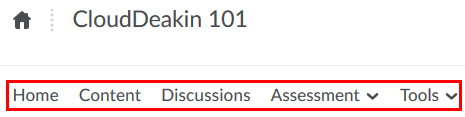
This is the Unit Site Home page and you can return to this page from anywhere in the site by clicking on the unit code link in the minibar. Site Home is the first page viewed when entering a unit. This is where you access Content, Assessment (including Dropbox, Grades and Quizzes), Site tools (which includes Classlist, Discussions and Groups) for the unit.

Similar to My Home, it contains tools and widgets for displaying information, including unit-specific content.

Navigation

The following navigation links and groups of links are available to help you access important tools within your unit.

The Assessment navigation group displays:

The Dropbox link where all of your assignment submission areas are located.

Online Quizzes can be accessed here.

Depending on how your unit has been set up, individual Discussion, Dropbox and Quiz items may also be available via the Content link/table of contents.

The Grades link will display any grades you've received.

The Site Tools navigation group allows you to access:

The Classlist tool to view other students in your unit.

Discussions will take you to the Forums and Topics list.

Groups will allow you to connect with other students for group-work.

Widgets

Look at this News widget for updates and announcements from your unit chair.

When you log in to your unit site the Updates widget will display any new activity since the last time you were there, for example, new discussion messages, a new assignment or quiz grades.

The Unit chair widget displays details of your unit chair.

The Calendar lets you know about any upcoming unit deadlines and assignment due dates that the unit chair has added.

From the Content Browser you can access your unit resources.

The Content Browser widget and the Content link both provide access to a Table of Contents for the unit resources provided by the unit chair. You will find that it is divided into four main areas:

    • Content Overview provides you with a summary of your unit.
    • Bookmarks display the materials that you have bookmarked.
    • Upcoming Events lists unit material due dates, start dates, end dates and any of the unit's events for the next seven days.
    • Table of Contents shows you all your unit material and provides an easy way to browse through the available resources by module.

From the Table of Contents, click on the title of the topic to view the content.

You can Bookmark a topic using the Add Bookmark button.

If you wish to view the content in a new window, click the View content in New Window button.

There are a few ways you can navigate through the content, you can

  • use Go to Previous Topic or Go to next Topic buttons
  • use the breadcrumbs
  • use the module list which is located at the bottom of the page to navigate to a particular topic for the module.

When you are finished, please Logout.

Understanding Minibar

minibar

The navigation minibar is located at the top of every page. The minibar enables you to switch in between units; navigate to My Home page; receive notifications; and update your profile and preferences.

Understanding My Home

My Home is your starting point inside the online learning environment. From here, you can set up your profile, edit your preferences and access your units.

When you first log in to My Home you will be able to:

  • view news posted by the University
  • access your units under the My Sites widget
  • view up-coming events and news

The units you are enrolled in will be visible in the My Sites widget. (A widget is an area on a webpage that houses a tool or has other information). Click on the name of your unit. This will take you to your unit homepage.

Setting your preferences

preferences
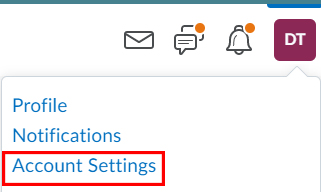
  1. From the navigation minibar, click on your name and select Preferences.
  2. Use the tabs General Preferences, Discussions, Email and Metadata, to view and edit the different presentation options.

Back to top